

Upload Data to Create Hosted Tilesets
Upload MBTiles or PMTiles tilesets and GeoJSON datasets through the Mappinest console. Check supported formats, plan limits, naming, and validation rules.
Supported formats
The console supports MBTiles and PMTiles uploads for vector or raster tilesets. It also accepts GeoJSON/JSON documents for editable datasets. Shapefile upload is not available in the current flow.
Accepted file types and upload limits
This table shows what the current console upload accepts and which per-file limits apply. MBTiles and PMTiles uploads are plan-based. Free supports up to 10 hosted files and 1 GB per file. Flex and Pro support up to 20 GB per file unless custom Pro terms apply.
Tileset upload workflow
Open Tilesets, select Add Tileset, and add one or more MBTiles or PMTiles files. Mappinest detects the format from the file extension, then validates and prepares each tileset for delivery endpoints.
Hosted storage follows plan rules. Free allows up to 10 files and 5 GB total storage. Flex allows up to 100 files and 20 GB total storage. If you need more than 20 GB of hosted storage or custom ingest terms, contact us to agree Pro terms.
Step 1 - Add files
Select Add Tileset, then drag MBTiles or PMTiles files into the dialog or select Browse. You can add up to 5 files at once.
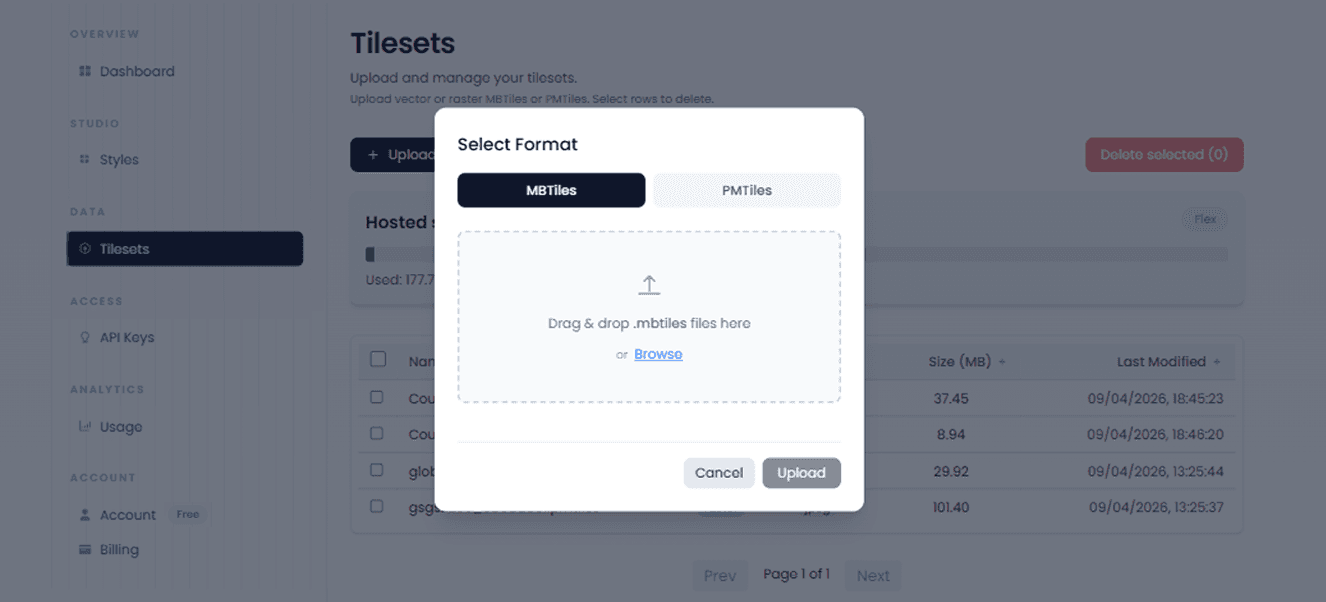
Step 2 - Upload files
Select Upload to start. The dialog shows the progress of each file.
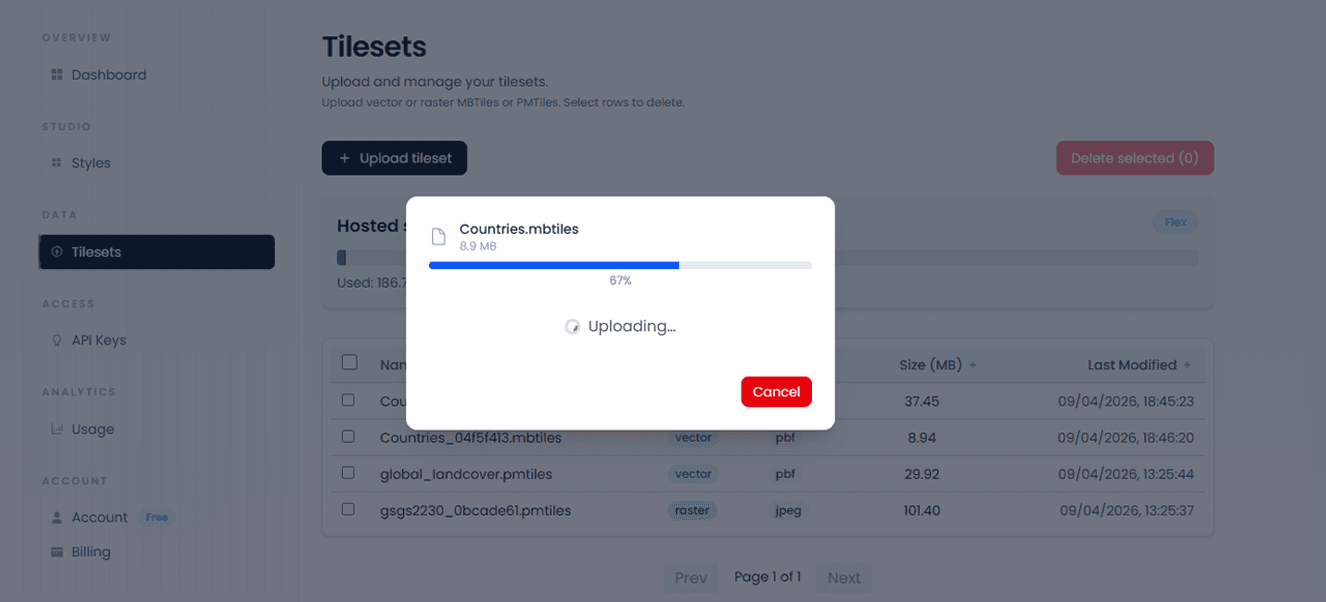
Step 3 - Processing
After upload completes, the tileset is validated and processed before tile delivery is enabled.
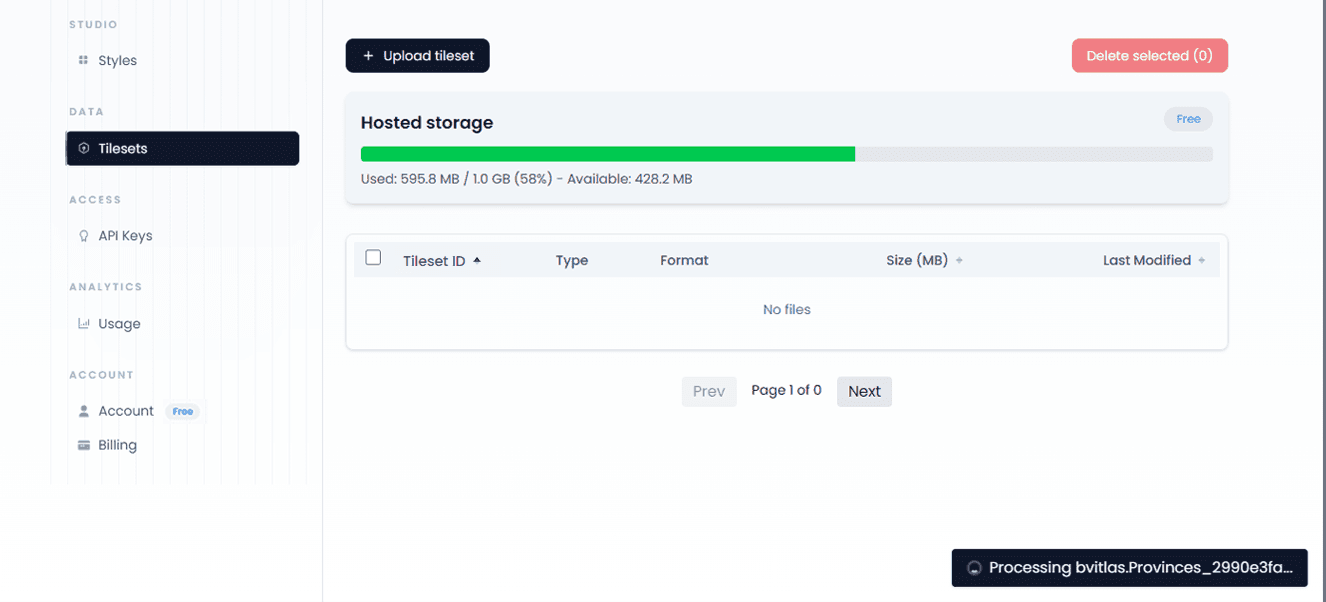
Step 4 - Tileset ready
Once processing finishes, the tileset appears in the Tilesets list and is available through delivery endpoints.
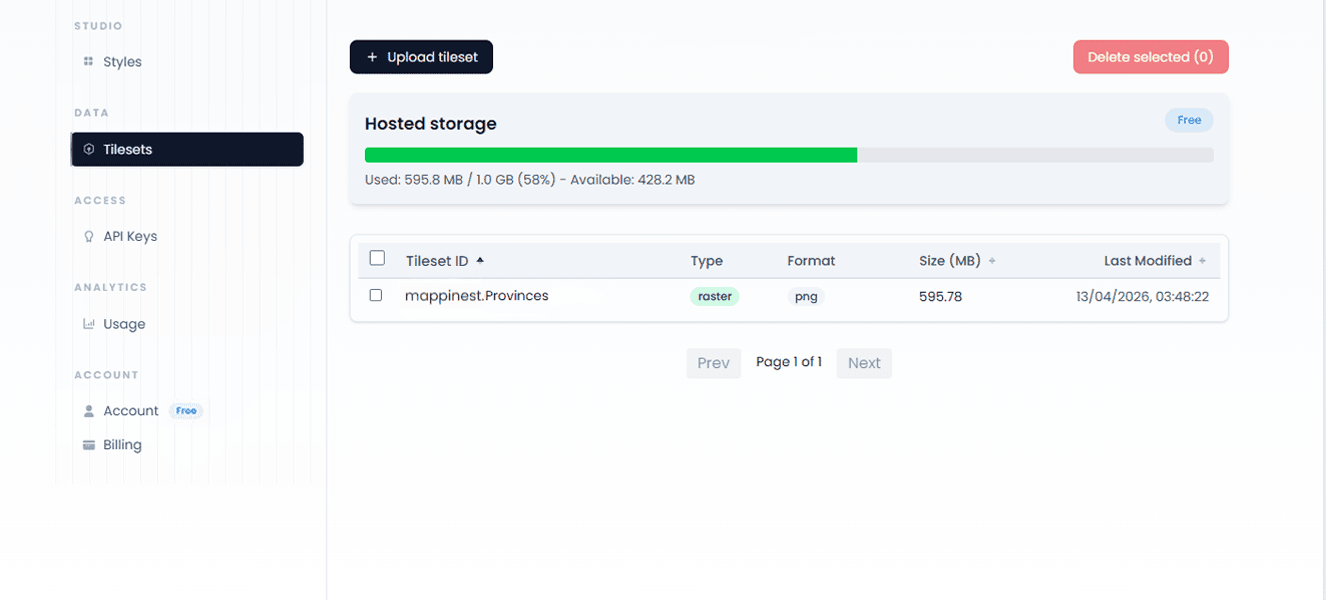
Tileset naming
When you upload a file, the filename is sanitized. Special characters are removed and spaces are replaced with underscores. If a tileset with the same name already exists, a version suffix is appended to keep the key unique and the cache stable.
The final tileset ID takes the form username.tileset, for example mappinest.Counties. The Tilesets table shows the tileset ID directly in the Tileset ID column. Click the tileset when you want to open the Studio preview or copy full API URLs from the API drawer.
Tileset lifecycle
After upload, each tileset goes through validation and preparation before it is ready to serve through the Tiles API.
- The uploaded file is validated to confirm it can be read and that the required tileset metadata is present.
- If validation passes, the tileset is processed and prepared for delivery through the standard tile endpoints.
- Once publishing finishes, the tileset is available through TileJSON, vector tile, or raster tile XYZ URL.
Upload validation limits
Mappinest validates datasets and tilesets before publishing. Dataset imports are normalized to GeoJSON, while tilesets are checked at the individual tile level.
Dataset complexity limits
A dataset source file can be within the upload limit and still fail validation if the published GeoJSON exceeds the output size or feature count limit.
Tileset complexity limits
New uploads are checked for file validity, tile weight, and rendering complexity before publishing. These checks help prevent very large tiles from causing slow map rendering, high bandwidth usage, or unnecessary pressure on the tile cache.
- Vector tiles are checked for average tile size, largest tile size, layer count, and fields per layer.
- Raster tiles are checked for average tile size, largest tile size, and tile resolution when it can be detected from the tileset.
Uploads are checked for tile weight and rendering complexity. Free supports tilesets with individual tiles up to 850 KB. Larger tilesets may require Flex or Pro. You can optimize a tileset by reducing zoom levels, simplifying geometry, removing unused vector attributes, or using stronger raster compression.
Current vector tileset limits
Current raster tileset limits
Any single tile above 5 MB is outside the standard upload limits. These limits apply to new uploads and replacements. Existing ready tilesets remain available as legacy uploads.
What to read next
Last updated: October 20, 2026