

Dataset Studio
Use Dataset Studio to draw GeoJSON features, edit properties, keep a local draft, and publish a new dataset revision or discard changes in the browser.
Open Dataset Studio
Open Datasets, open the three-dot menu (⋮) next to the dataset, and select Edit in Studio. You can also select Start drawing from the Add Dataset dialog to create a blank dataset and open it immediately.
Edit a dataset in Studio
Draw features on the map, edit their properties, and use Publish or Discard to manage changes.
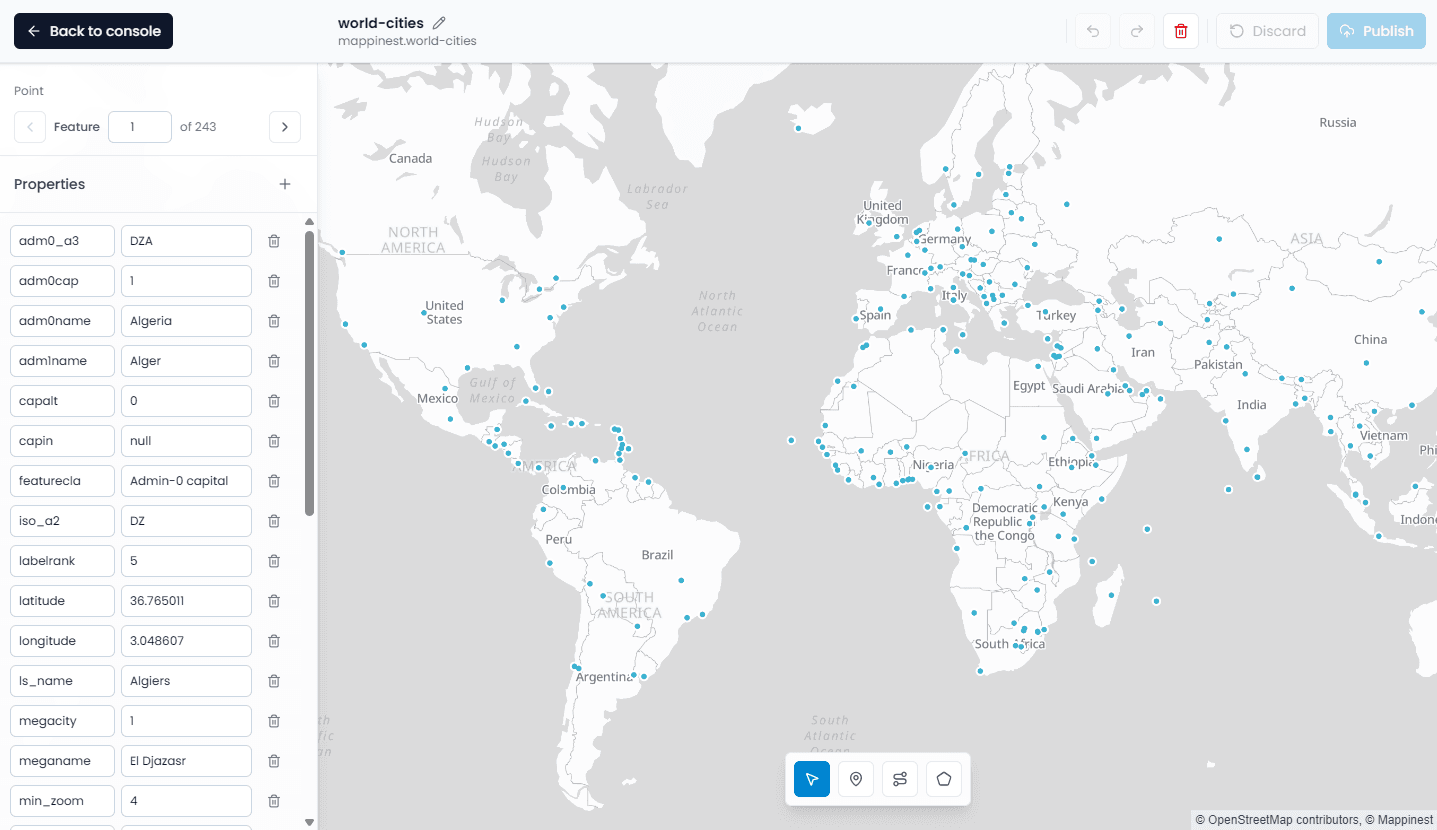
Draw and edit features
Select a feature to edit its property names and values. Values that contain valid JSON are saved as that JSON value. Other values are saved as strings. Use the previous, next, or feature-number controls to move through the collection.
Geometry editing limits
Studio edits Point, LineString, and Polygon geometry. MultiPoint, MultiLineString, MultiPolygon, GeometryCollection, and features above the interactive complexity limits remain visible with read-only geometry. Their properties can still be edited, and the feature can still be deleted.
- One editable feature can contain up to 5,000 vertices.
- One Studio session can expose up to 50,000 editable vertices.
- Undo and redo retain up to 50 local history states.
- Geometry beyond those limits remains visible but read-only.
Null geometry
Features with null geometry are valid for Dataset API delivery but are not currently supported by Dataset Studio. Upload a revised source without null geometries before editing the dataset in Studio.
Local drafts
Studio saves completed edits as a local browser draft. A saved draft does not change the published Dataset API response. Reopening the same dataset in the same browser restores that draft until it is published or discarded.
Browser storage
Local drafts stay in the current browser profile. They are not synchronized to another browser or device and should not be treated as a server backup.
Reopen a published dataset
Studio keeps the latest published GeoJSON response in the current browser's private HTTP cache. When you reopen the dataset, the browser revalidates its ETag after account authorization. An unchanged revision returns 304 Not Modified, allowing the browser to reuse the stored collection without downloading it again. A newer revision returns the latest GeoJSON normally.
Published response cache
This response cache is separate from the local draft. It never replaces unpublished work and is not shared with other browser profiles, devices, or shared HTTP caches.
Publish or discard
Select Publish to apply all feature and name changes in one atomic operation. A successful Publish advances the dataset revision, returns a new ETag, clears the local draft, and makes the revision available through Dataset API reads.
Select Discard to remove the local draft and reload the latest published revision. Discard cannot be undone.
Revision conflicts
Studio publishes against the exact ETag that was loaded when the editing session began. If another publish changes the dataset first, Studio preserves the local draft and reports a revision conflict. Review the situation before discarding the draft and loading the latest revision.
What to read next
Last updated: October 20, 2026